Methods for Creating Return Orders
Return orders are populated in the Returns menu through these two channels:
End-Customer Portal: Customers can initiate their own return order through the return portal.
Dashboard Creation: Users can manually create return orders directly from the OTO dashboard for any delivered shipment.
How to Create a Return Order from the Dashboard
For cases where a merchant needs to initiate a return on behalf of a customer, follow these steps:
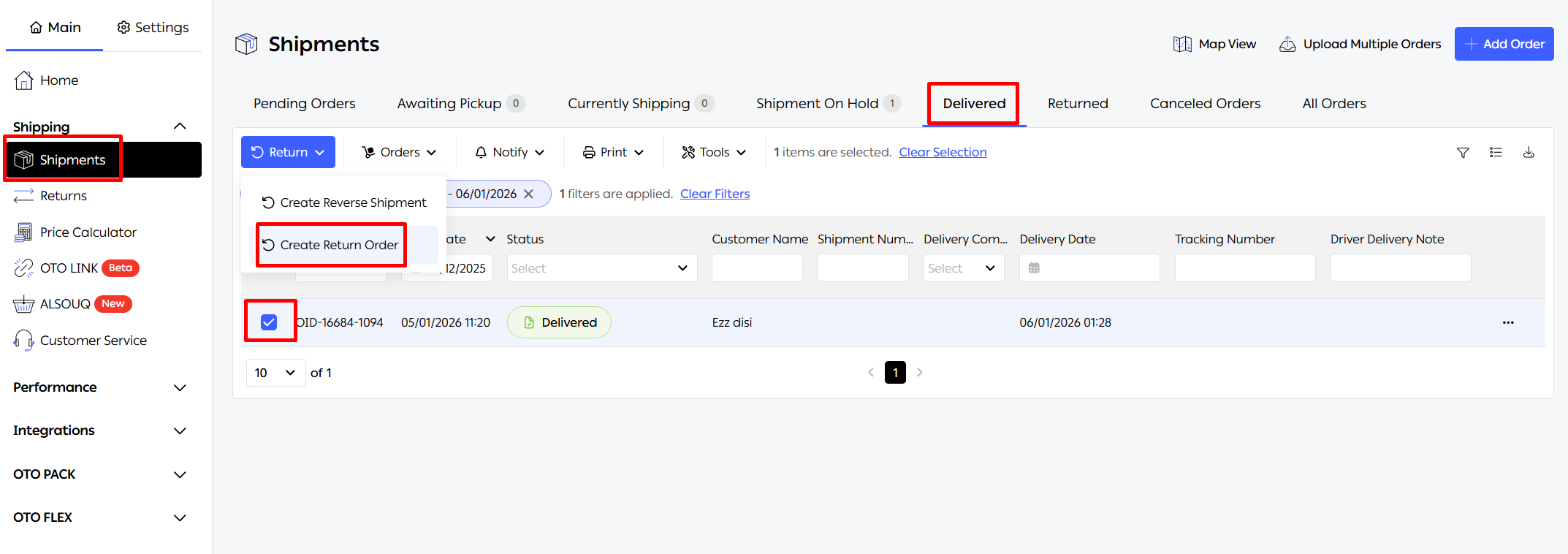
Navigate to Shipments: Go to the Shipping section in the left-hand menu and select Shipments.
Locate Delivered Orders: Click on the Delivered tab to view orders eligible for return.
Initiate Return: Select the order, click the Return button, and choose Create Return Order.
Configure Return Details: In the "Return Order Details" pop-up:
Add Return Reason Comments and any necessary Attachments.
Select the Refund Method (Money Back, Exchange, or Store Credit).
Choose the Return Method (Home Pickup or Drop-off).
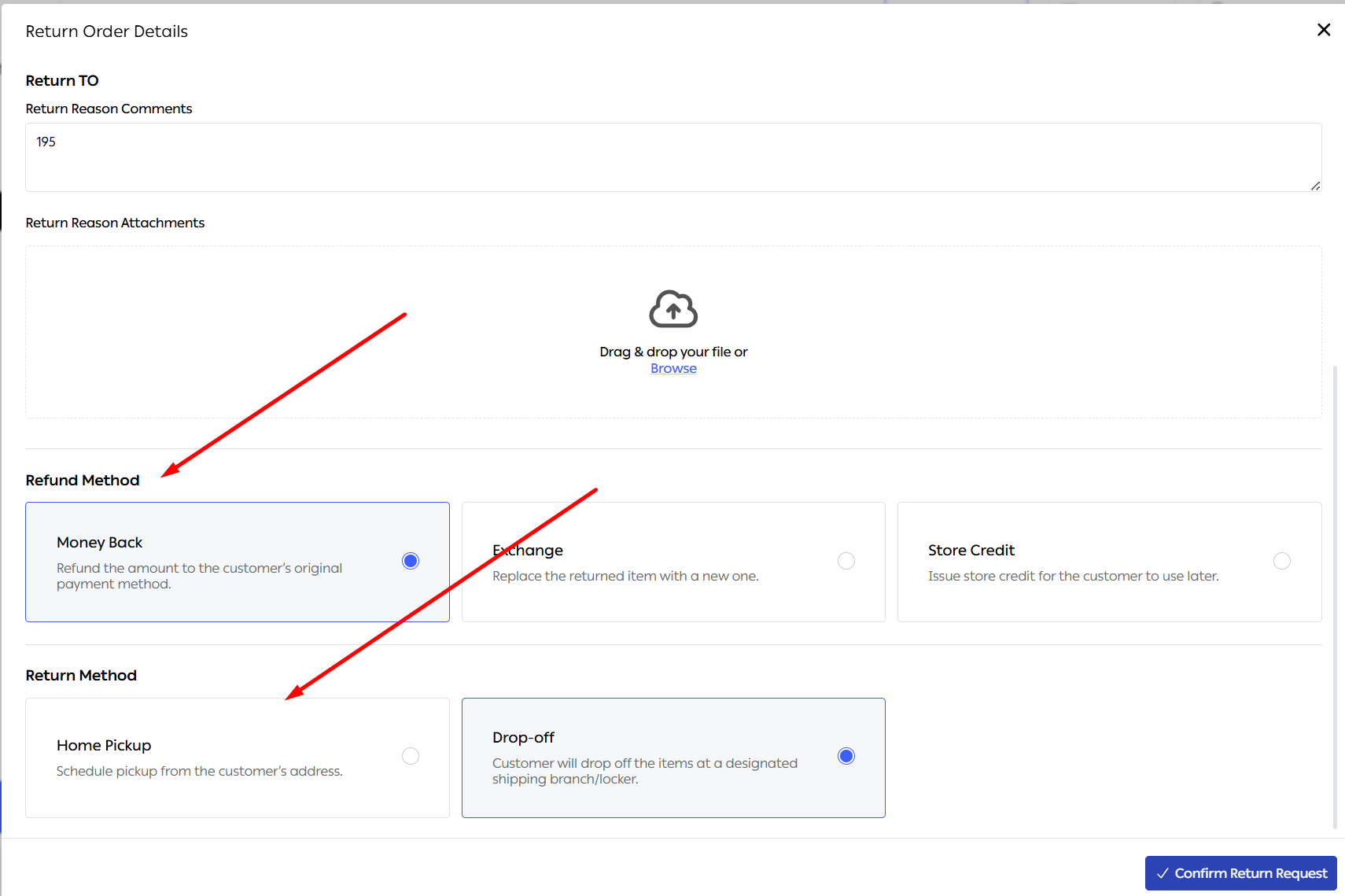
Confirm: Click Confirm Return Request to add the order to the Returns menu.
Managing the Return Lifecycle
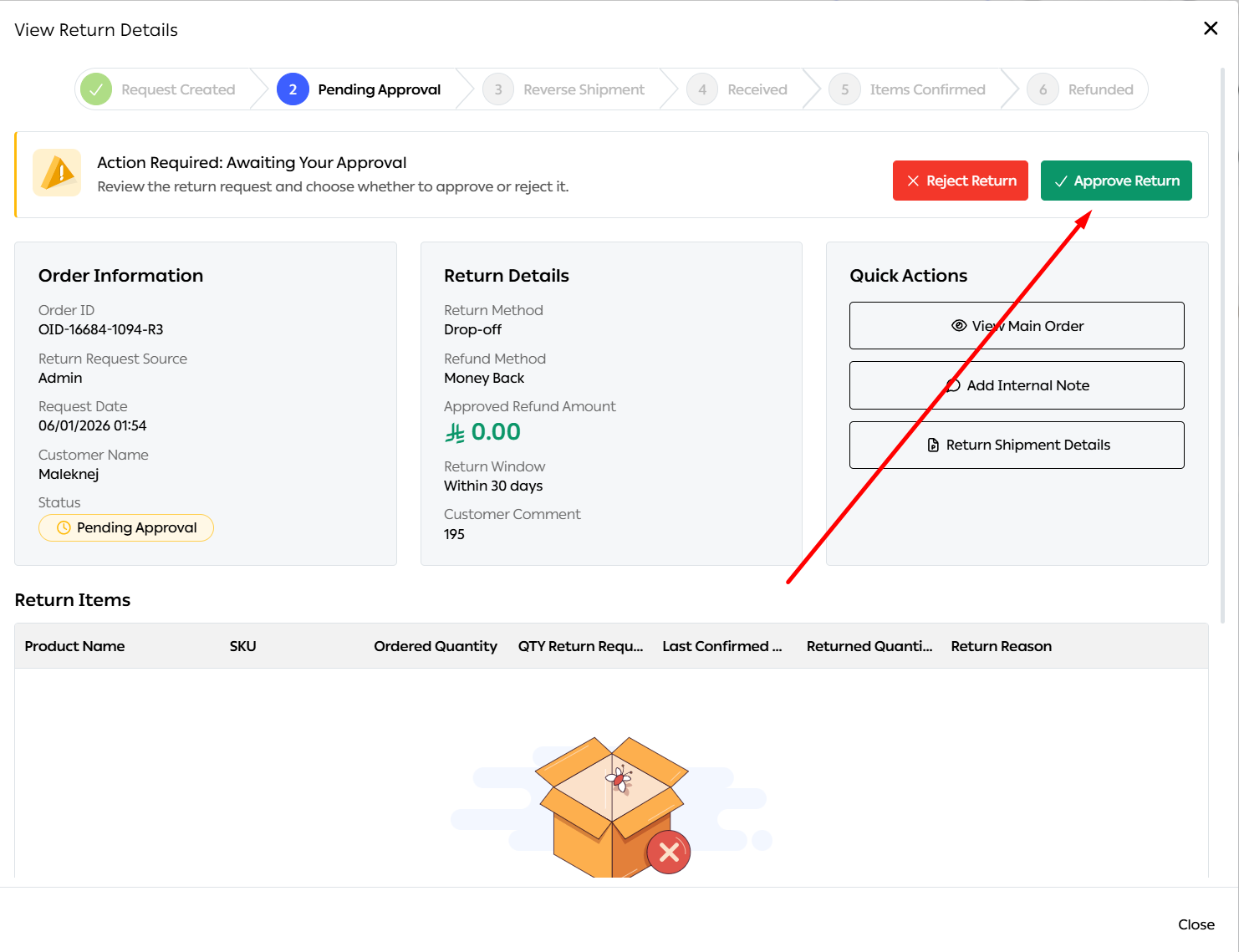
Once created via either method, the return appears in the Returns menu under the In Progress tab. The system uses a unique structure, such as OID-10288-10120-R1, where R1 indicates the first return request for that order.
Important Note: This system is specifically designed for customer-initiated returns and does not include "Failed Delivery" scenarios.
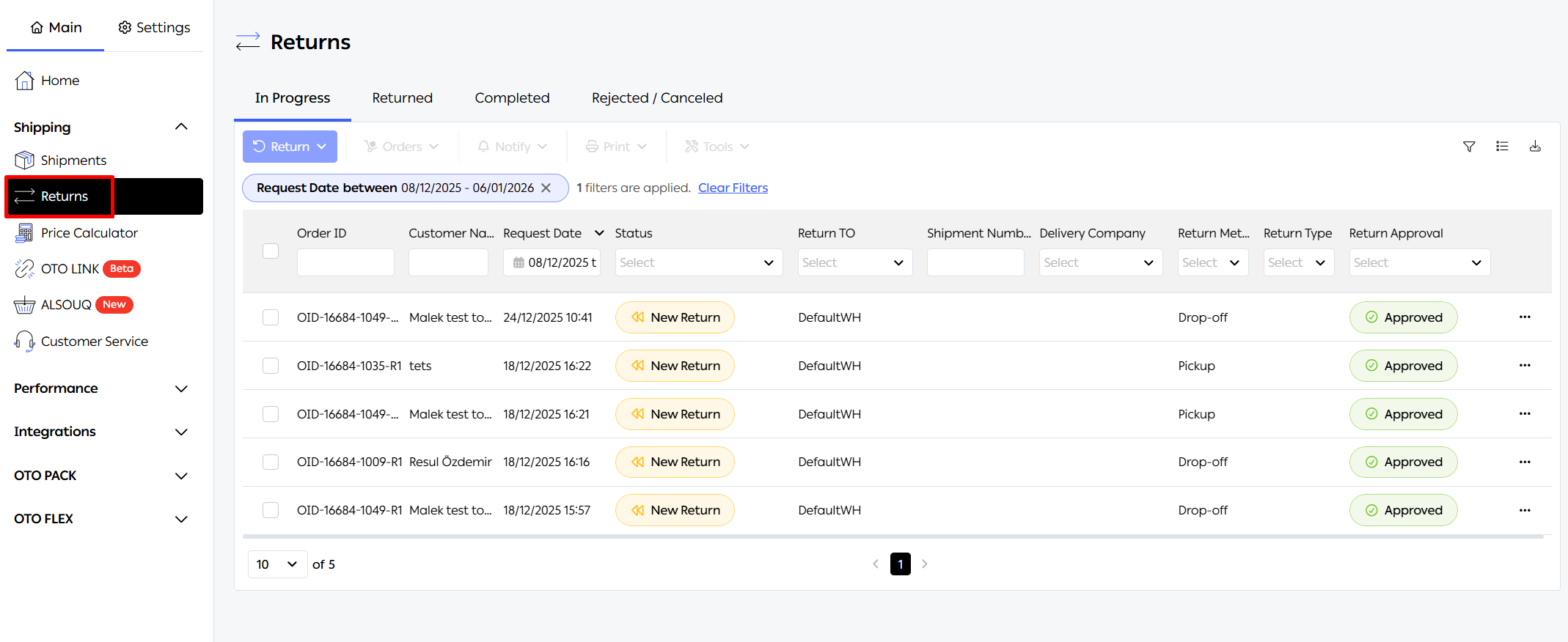
Accessing the Returns Menu
You can find the new returns management features within the Shipping tab on the left-hand menu, under the Returns option. This portal is organized into four distinct tabs to simplify tracking:
In Progress: For monitoring active return requests.
Returned: For successfully closed and processed returns.
Completed: For historical records.
Rejected / Concealed: For requests that did not meet the necessary conditions.
Managing Returns via a Unified Form
Instead of navigating through multiple pages, you can manage all stages of the return through a single "Manage Return" form. Clicking this form reveals the following details:
1. Creating the Reverse Shipment
Once a return is created and approved, you can generate the shipping label directly within the form: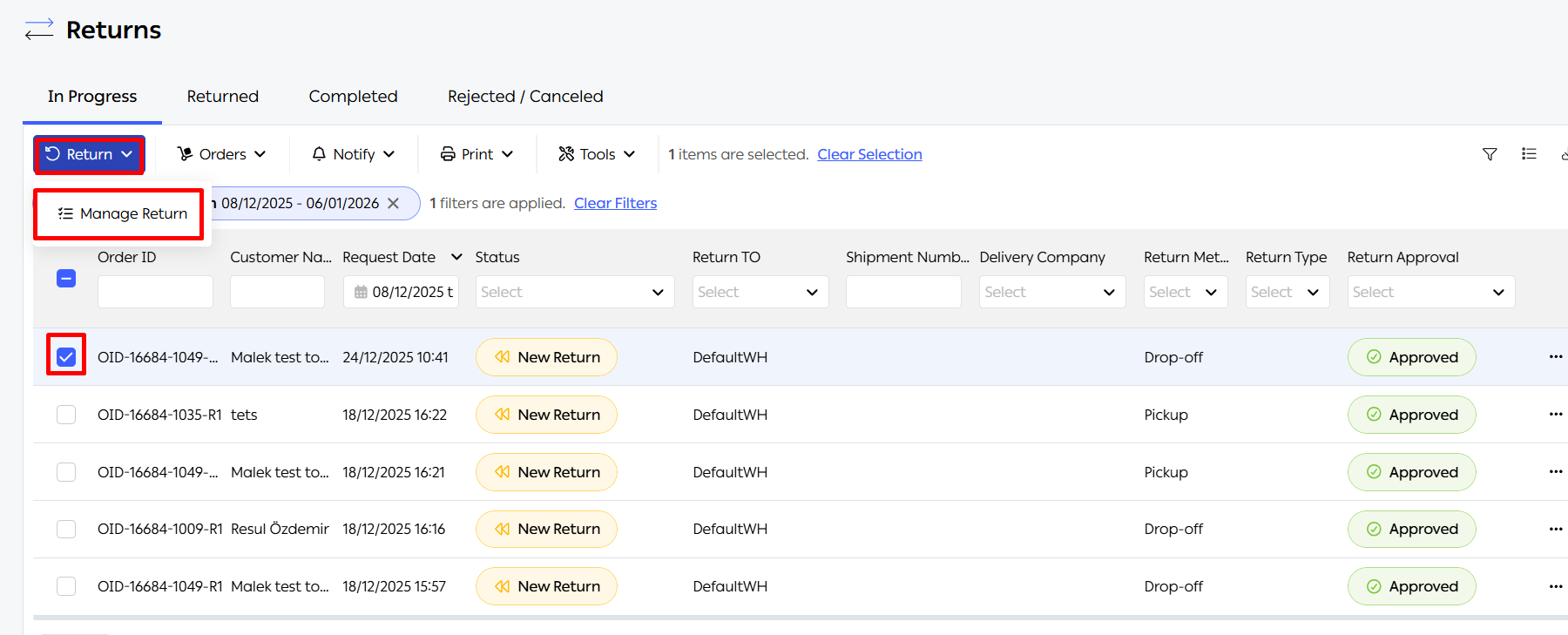
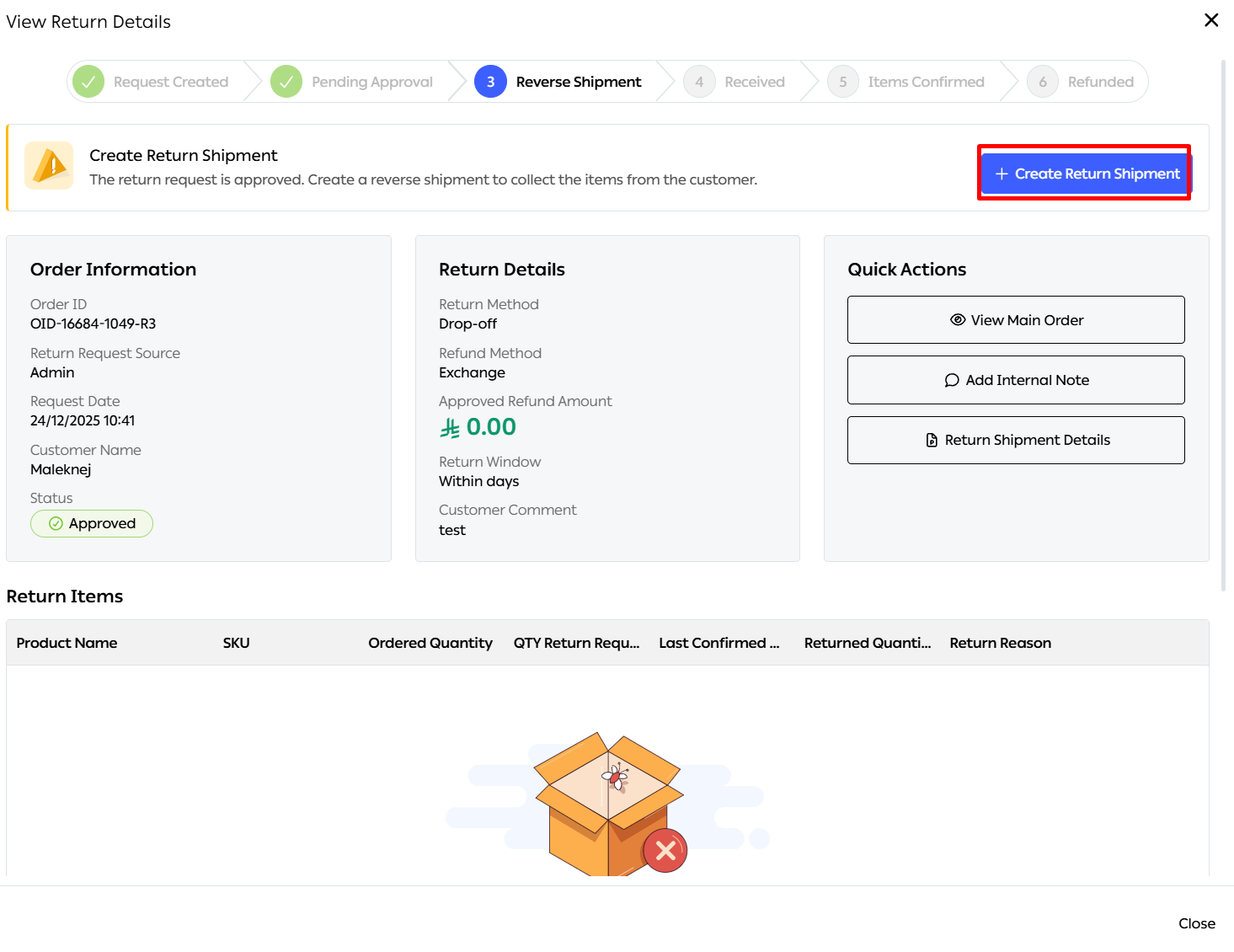
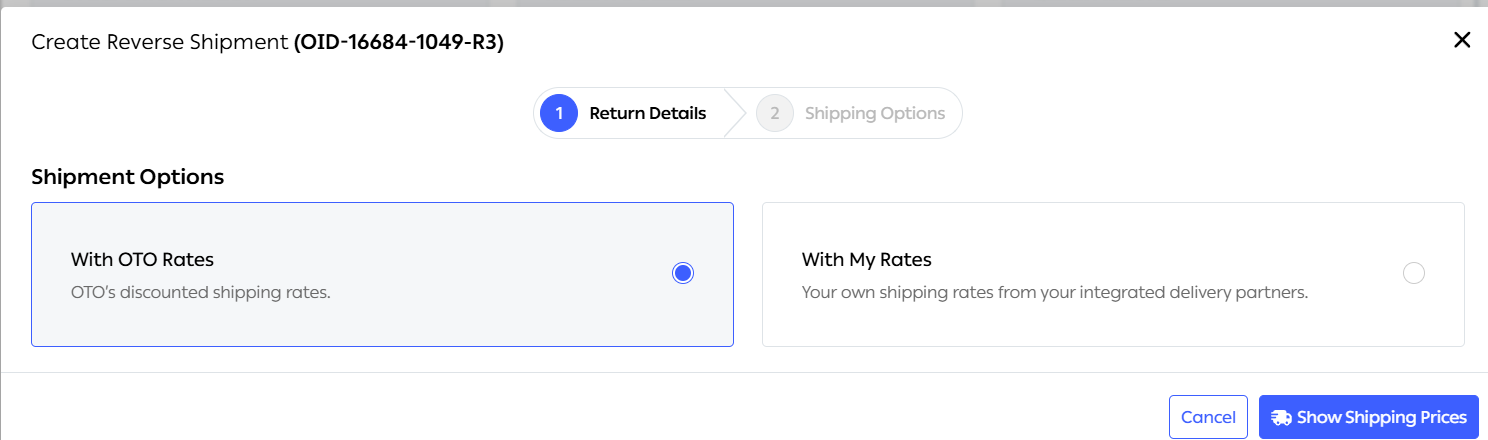
Choose the shipment option (OTO Rates or Own Rates)
Select the destination for the return, such as a specific warehouse or branch.
Print the Return Label (Airway Bill) directly from the "Quick Actions" menu.
2. Receiving and Inspecting Items
When the returned items arrive at your location, you can document the receipt:
Record the Receiving Date and Time.
Specify the exact warehouse or branch that received the shipment.
Add internal notes regarding the physical condition of the received items.
3. Confirming Items
This stage is critical before issuing a refund, allowing you to:
Match the quantity of items requested for return with what was actually received.
Verify the "Return Reason" provided by the customer during the initial request.
Final Phase: Processing the Refund
An extra step has been added to ensure financial accuracy. You can now:
Review the refund amount calculated by your e-commerce platform.
Select the refund method (Money Back, Exchange, or Store Credit).
Confirm the refund, which moves the request to the final "Completed" status on the progress bar.
The Progress Bar at the top of the form ensures clear visibility of the current stage for every request, eliminating guesswork and increasing the efficiency of your customer service team.
Was this article helpful?
That’s Great!
Thank you for your feedback
Sorry! We couldn't be helpful
Thank you for your feedback
Feedback sent
We appreciate your effort and will try to fix the article